AI Video Clipping Tool Free: The Beginner’s Guide to Fast, No-Cost Shorts
Looking for a free AI video clipping tool that won't lock you into a subscription? Keep reading. We'll show how each option works and point out the fastest way to turn a long YouTube video into a short clip.
Understanding AI Video Clipping and Its Free Benefits
AI video clipping lets you cut a long clip down to a bite-size piece in seconds. The free side of these tools means you can test the magic without paying a cent.
Why does free matter? First, it cuts cost for creators who are just starting. Second, it lets you see how well the AI picks the best moments before you commit to a plan.
Most free plans give you a set number of credits or a limited minutes per month. Those credits act like tokens, each clip you make uses a few. Tools like LTX Studio hand you 800 credits, which is enough for dozens of shorts, while others only hand out 60 a month. The bigger the credit pool, the more you can experiment with different cuts, subtitles, and formats.
A hidden perk of free tools is that they often include basic subtitle generation. Even if only three out of the fourteen tools we looked at offer auto-subtitles, that can save you hours of typing. Subtitles also boost watch time because viewers can follow along without sound.
Speed is another free benefit. With AI, the clip is created in a few clicks. No need to learn a timeline or drag files around. If you paste a YouTube link, the AI scans for high-energy moments, trims them, and adds captions, all in one flow.
Want a quick way to see how AI can help you beyond video? Try a chat AI like WailGPT for brainstorming titles or scripts. It’s a free side-kick that works well with clipping tools.
Bottom line: a free AI video clipping tool gives you cheap testing ground, fast results, and sometimes subtitles. Pick a tool with enough credits for your workflow, and you’ll be able to turn a long video into a share-ready short without breaking the bank.
Feature Comparison: Clipper Next vs Other Free AI Clipping Tools
When you need a quick clip, you want a tool that does the work for you, not a list of settings you have to fight with. That’s why we put Clipper Next at the top of the free AI video clipping tool free list.
Clipper Next runs as a desktop app. You paste a YouTube link, the AI finds the best 60-second slice, adds captions, and lets you export at 1080p in under a minute. No subscription, just a one-time buy.
Other free tools often give you a few credits and then ask you to upgrade. They may lack auto-subtitle support or limit you to lower resolution. Some even need you to edit the timeline by hand.
Here’s a quick look at the key bits that matter for a creator on a budget:
| Feature | Clipper Next | Typical Free Tools |
|---|---|---|
| Free credits | Unlimited after purchase | 100-400 credits total |
| Auto subtitles | Built-in, 1080p | Rare, often missing |
| Export quality | 1080p, no watermark | 720p or watermarked |
So, which tool wins? If you want speed, no watermarks, and a workflow that feels like a single click, Clipper Next is the clear pick. If you only need a handful of clips and don’t mind a lower quality output, a free web service might work.
Think about the next time you have a long tutorial and need a Reel. With Clipper Next you’ll get the clip ready to post while you brew coffee. With a typical free web tool you might be waiting for credits to refill.
Want a deeper dive on why this matters? Check out our best AI video clipping tool guide for more tips.
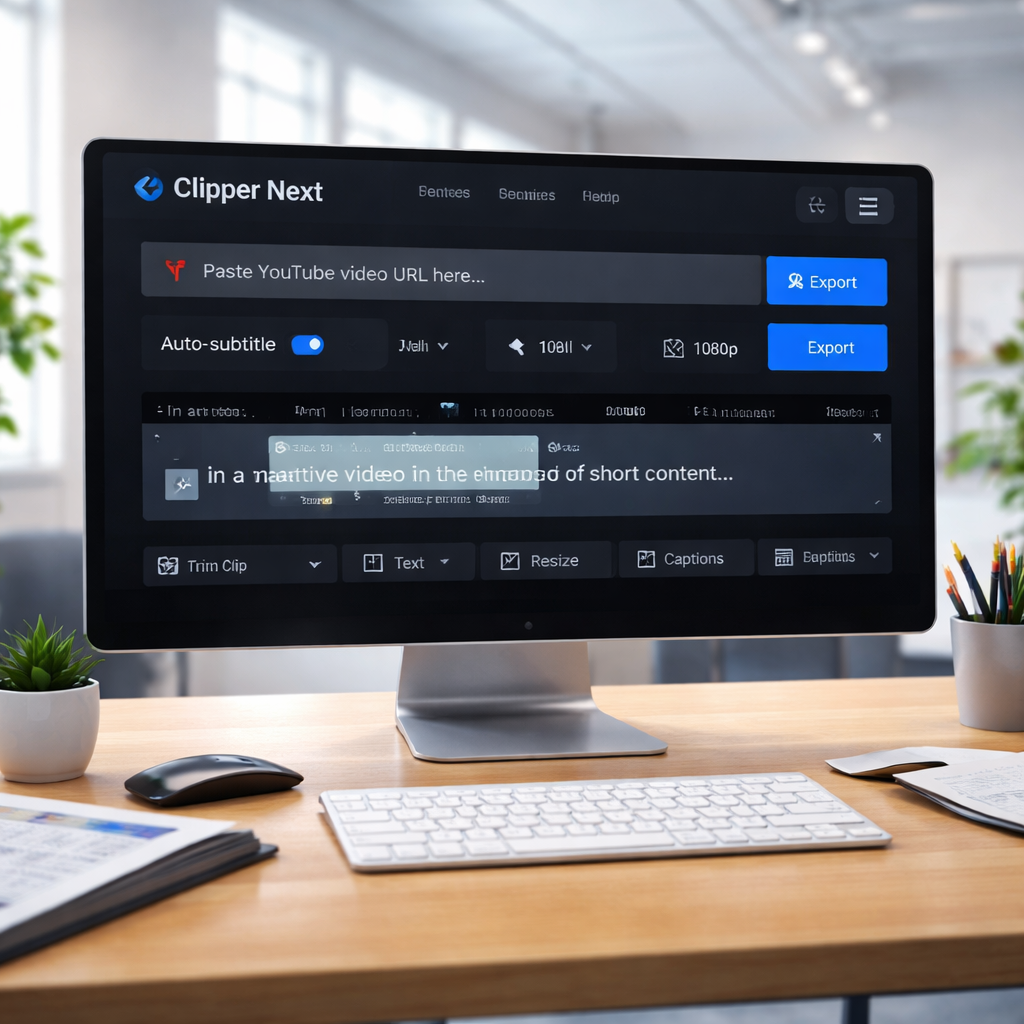
How to Clip YouTube Videos into Shorts with Clipper Next (Free Lifetime Deal)
Got a long YouTube video and need a quick 60-second short? You can do it in under a minute with Clipper Next’s free lifetime deal.
Step 1: Copy the YouTube URL
Open the video you want to clip. Grab the link from the address bar. It’s the only thing you’ll need.
Step 2: Paste into Clipper Next
Launch the desktop app. There’s a big field that says “Paste YouTube link.” Drop the URL there and hit the “Find Clip” button.
Step 3: Let the AI pick the best slice
The AI watches the video, spots the strongest moments, and suggests a 60-second segment. You can accept it as-is or slide the handles a few seconds left or right.
Step 4: Add captions automatically
One click adds auto-generated subtitles. They’re already timed to the clip, so you don’t have to type anything.
Step 5: Export in 1080p
Hit “Export.” The file saves as an MP4 at full HD with no watermark. You’re ready to upload to Shorts, Reels, or TikTok.
Because the app is a one-time purchase, you get unlimited clips without worrying about credit counters or monthly fees. That means you can keep churning out shorts while you sip coffee.
Step-by-Step Workflow for Quick, Captioned Shorts Using Clipper Next
Got a long video and need a punchy short? You can do it in under a minute with Clipper Next.
1. Paste the YouTube link
Copy the URL from the address bar. Open the desktop app and drop the link into the big input box. The app reads the video right away.
2. Let the AI pick the highlight
Press “Find Clip”. The AI scans the footage, spots the strongest 60-second moment, and shows you a preview.
3. Add captions automatically
Click “Add Captions”. The tool creates timed subtitles in seconds.
4. Export in full HD
Hit “Export”. The file saves as an MP4 at 1080p with no watermark.
Real-World Use Cases: From Podcasts to TikTok Growth
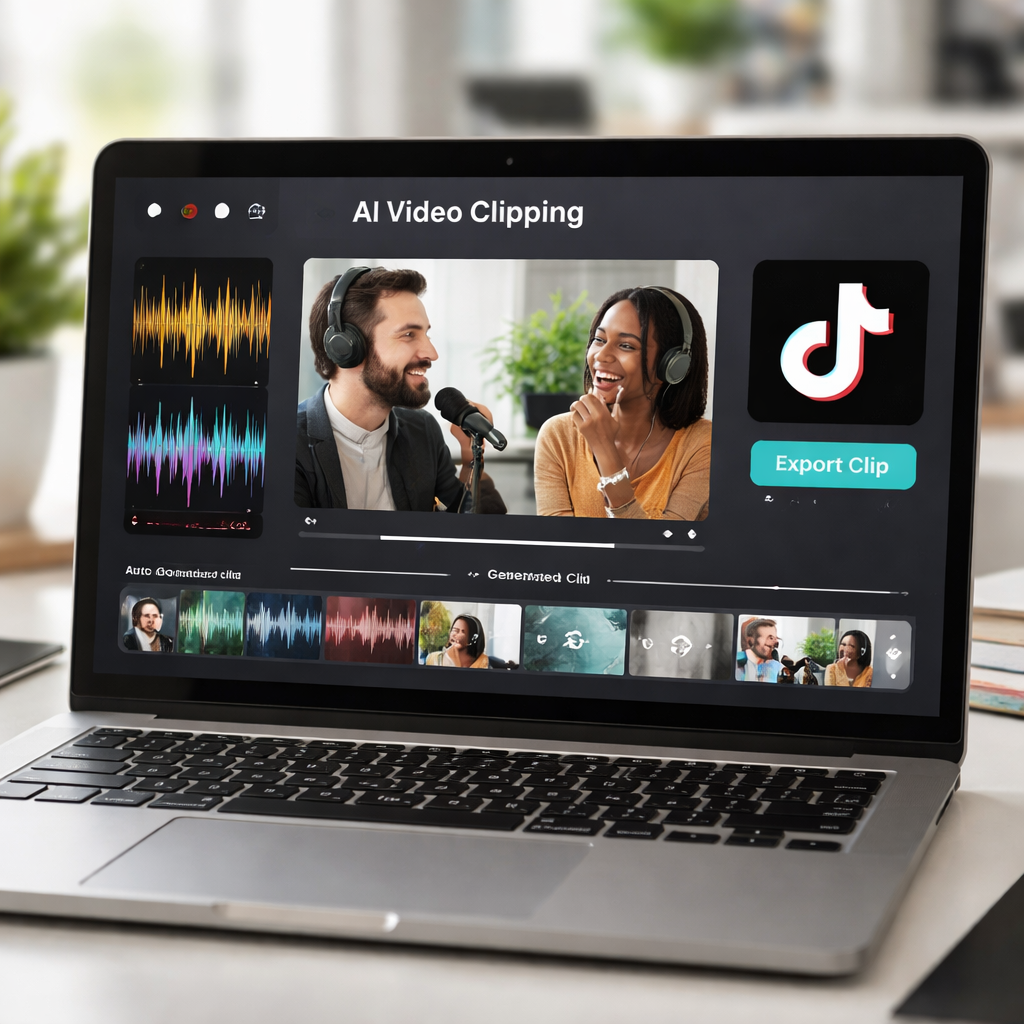
Got a long podcast episode and need a bite-size clip? You can pull the best 60 seconds in a snap with an AI video clipping tool free.
Conclusion & Call to Action
You’ve seen how a free AI video clipping tool can turn hours of footage into bite-size clips in seconds.
FAQ
What is an AI video clipping tool free and how does it work?
An AI video clipping tool free lets you turn a long video into short clips without paying.
Do I need editing skills?
No.
How many clips can I make?
Depends on credits.
Are subtitles included?
Yes in some tools.
Can I use it for TikTok and Shorts?
Yes.
Is my data safe?
Yes, processed locally.