AI Video Editing for TikTok: A Step-by-Step Guide to Fast, Captioned Shorts
AI video editing for TikTok can shrink a two-hour filming session into a 60-second clip in minutes.
Most creators start with a long video that feels too bulky for the fast-paced TikTok feed. Cutting it down by hand means watching the whole thing, guessing the best moment, and then fiddling with size and captions.
That’s where AI steps in. A tool can scan the footage, spot the strongest 60-second slice, add subtitles, resize to vertical, and export at 1080p without you touching a timeline. One practical way to try this is to upload a YouTube tutorial, let the AI pick the highlight, then tweak the text if you like. Platforms like Best Software to Make YouTube Shorts in 2026 make the workflow feel like a single click.
Here’s a quick checklist: 1) Choose a source video you’d normally post. 2) Run it through an AI editor that auto-detects the most engaging moment. 3) Review the generated subtitles and adjust any slang. 4) Export in TikTok’s vertical format and upload.
If you’re stuck on what hook will actually trend, you can turn to Velio – Helping YouTubers uncover proven viral video ideas and trends, using data for data-driven inspiration before you edit.
Step 1: Choose the Right AI Clipping Tool for TikTok
First, you want a tool that can take a long video and spit out a 60-second TikTok clip in minutes. No crazy timelines, no endless tweaking.
Look for three things: 1) automatic highlight detection, 2) built-in subtitle generation, and 3) one-click vertical export. If a program does all three, you’ve saved hours of manual work.
Cost matters too. Many AI editors charge a monthly fee that adds up fast. Think of it like budgeting for small-business IT – see how much managed IT services cost for a small business in Salinas and compare that to a one-time purchase.
One tool that checks every box is Clipper Next. It’s a desktop app, so you don’t need an internet connection after download, and it offers a lifetime deal instead of a subscription. That makes it the easiest, fastest, and most beginner-friendly option on the market.
Another handy add-on is a caption-assistant like BubblyAgent AI. It can polish the auto-generated subtitles so they sound natural and match the vibe of TikTok’s fast feed.
After you upload your source video, let the AI scan it, pick the most engaging 60 seconds, and apply subtitles. Review the text, hit Export, and you’re ready to upload.
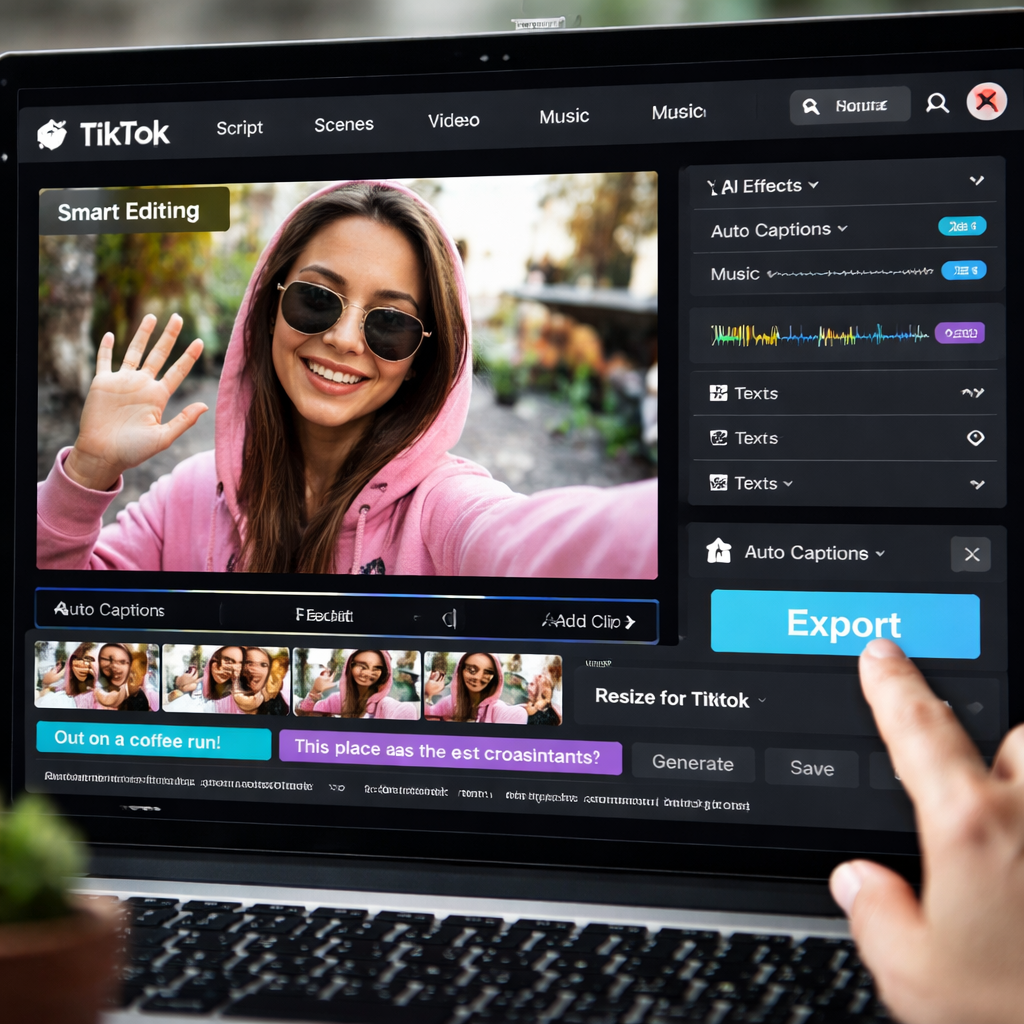
Take a few minutes now to test a free trial. If the clip looks good, lock in the tool and make it part of your daily workflow.
Step 2: Prepare Your Source Video and Set Up Clipper Next
First, pick the video you plan to turn into a TikTok. It could be a YouTube tutorial, a podcast recording, or any long-form content that already has value. The key is that the footage is clear enough for viewers to follow and that the main point fits in 60 seconds.
Download the file to your computer. If it’s on YouTube, use a trusted downloader to get an MP4 at 1080p. Keep the original file name short, it saves you time later when you drag it into the app.
Now fire up Clipper Next. The installer runs with a single click; no extra plugins or accounts needed. When the app opens, you’ll see a big “Add Video” button. Drag your MP4 onto that spot or click to browse.
Before you hit “Start”, check the simple settings. Choose “Vertical (9:16)” so the output matches TikTok’s format. Turn on “Auto-caption” – the AI will write subtitles in the same language as the audio. You can also set a max length of 60 seconds; the tool will cut out the weakest bits automatically.
Hit the “Clip” button. The AI scans the video, picks the most engaging moment, adds captions, and resizes everything in under a minute. When the progress bar finishes, a preview window shows the short. Play it back and make sure the hook lands early and the text lines up with the speech.
If you need a quick side-by-side look at how Clipper Next stacks up against other tools, check out the best software to make YouTube Shorts in 2026. That guide walks you through price, speed, and ease-of-use.
Save the final file to a folder named “TikTok Shorts”. You’re now ready to add music, a thumbnail, and upload. The whole prep takes minutes, not hours, and you’ve set the stage for fast, repeatable AI video editing for TikTok.
Step 3: Create the TikTok Short with Captions and Effects
Now the clip is in your folder, you can shape it into a TikTok short. Open the file in Clipper Next’s preview window and hit the “Edit” button.
The first thing to watch is the hook. Does the first two seconds grab attention? If not, drag the start marker a beat earlier or later until the moment feels punchy.
Next, turn on captions. Click “Add Captions”. The AI will copy the speech text into subtitle lines that match the timing. Scan each line – fix any slang or miss-spelled words so the text feels natural.
After captions, add a simple effect. Choose “Fade In” for the opening frame and “Zoom” for the last beat. Keep effects light; TikTok users prefer quick moves over heavy filters.
Want to see how other creators pick effects? Check the best software to make YouTube Shorts guide for quick tips on popular styles.
When you’re happy, hit “Export”. Pick “Vertical (9:16)” and set the length to 60 seconds or less. The app will render a 1080p MP4 in under a minute.
Save the final file back into your “TikTok Shorts” folder. You now have a ready-to-upload video with captions and a subtle effect that matches TikTok’s fast pace.
Quick checklist before you upload:
- Hook lands in first two seconds.
- Captions are accurate and easy to read.
- Only or two light effects applied.
- Exported as vertical 1080p under 60 seconds.
With these steps, AI video editing for TikTok becomes a repeatable routine you can run in minutes.
Step 4: Compare Features and Export Options – Quick Data Table
Now you need to see how the tools stack up. Look at the core things that matter when you turn a long video into a TikTok short.
First, ask yourself: does the app add captions automatically? Does it let you choose the export size you need? Does it charge you every month? Those answers will decide if you waste time or get a quick win.
Below is a fast table that shows the main points. It pulls the numbers straight from the Clipper Next feature comparison guide and a few other popular tools.
FeatureClipper NextTypical CompetitorOne-click 60-sec clipYes – AI picks the best slice in under a minuteOften needs manual trimmingAuto-captionBuilt-in, edit-ready subtitlesSeparate add-on or extra stepExport formatVertical 9:16, 1080p MP4May require extra conversionPricingOne-time lifetime dealMonthly subscription
Notice the big gap in pricing. A lifetime fee means you never see a recurring bill, so the cost stays low as you keep making shorts.
Speed matters too. If the AI can finish the whole flow while you sip coffee, you’ll stay ahead of the TikTok feed. If you have to wait for separate steps, the momentum drops.
Finally, think about export options. TikTok wants vertical 1080p. Some tools still output a square file that you must resize later. Clipper Next sends the right size straight away, so you skip a hassle.
Use this table as your quick checklist before you pick a tool. If a platform misses any of the green checks, you might end up doing extra work that kills the fast-track vibe you want for AI video editing for TikTok.
Conclusion
AI video editing for TikTok lets you turn hours of footage into a punchy 60-second clip in minutes. The tools we covered cut out the grunt work and keep your content fresh.
Pick a tool that auto-detects the hook, adds captions, and outputs a vertical 1080p file. Test a short export, check the subtitles on your phone, and you’ll know if it’s the right fit.
If you want the simplest, fastest path, Clipper Next lands at the top. One-click export, no watermark, and a one-time purchase mean you keep making clips without watching your budget drain.
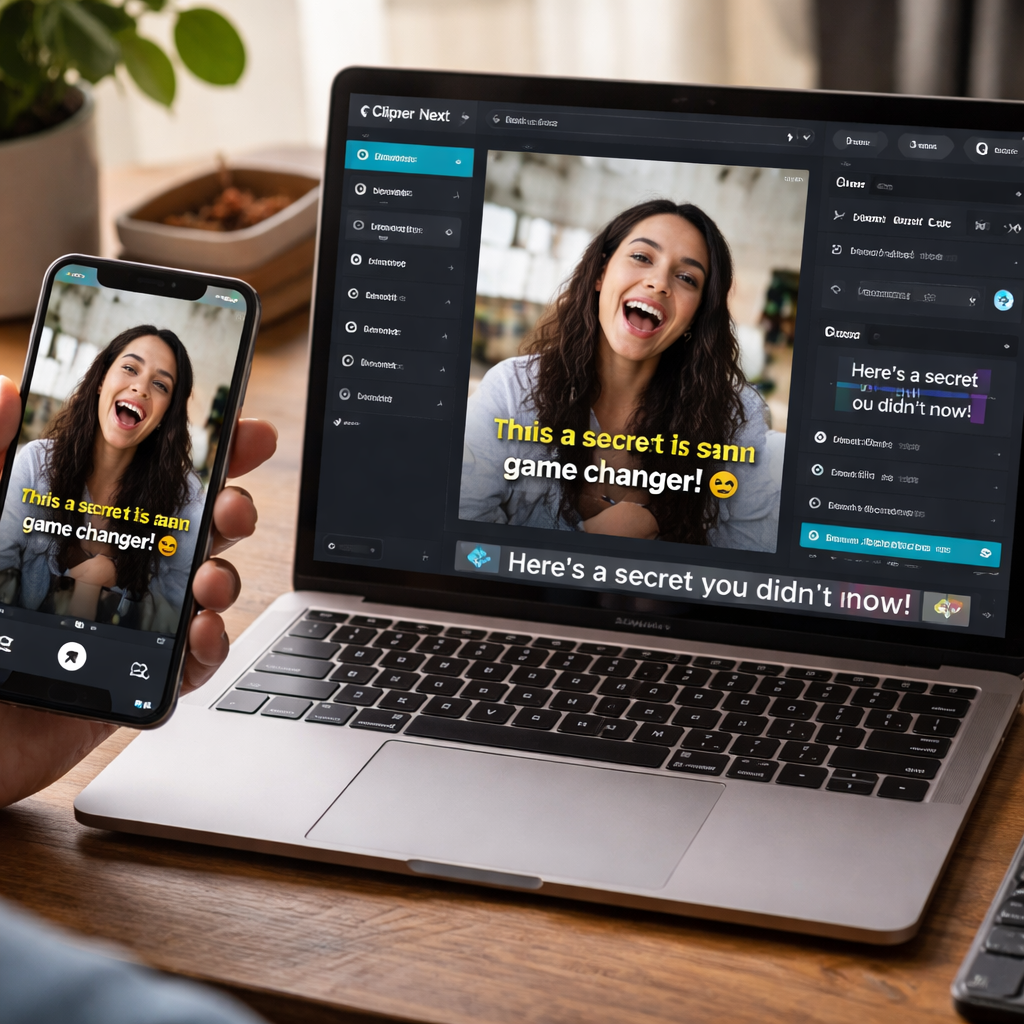
Now you’ve got the roadmap. Grab your long video, let the AI do the heavy lifting, and post a ready-to-go short that grabs attention. Go ahead and give it a spin. The results speak for themselves.
FAQ
What is AI video editing for TikTok and how does it work?
AI video editing for TikTok means letting a smart program scan a long clip, pick the most exciting 60-second part, add subtitles and flip the frame to vertical.
Do I need editing skills to use AI tools?
No.
How fast can I get a finished short?
Under a minute.
Is the output quality good enough?
Yes, 1080p vertical.
Can I keep my brand style?
Yes.
What are the cost benefits?
One-time purchase saves money.