How to Use an AI Video Summary Tool for Fast, Accurate Content Recaps
Finding the right AI video summary tool feels like hunting for a needle in a haystack of endless options.
Most tools promise magic, but they leave you with a fuzzy clip that misses the point. What you really need is a clear, 60-second highlight that grabs attention without hours of editing.
Imagine you have a one-hour webinar on pet care. You paste the link into an AI video summary tool, and within minutes it pulls out the top moments where a vet explains a common allergy. You get a ready-to-post short, subtitles added, sized for TikTok, all in 1080p.
Quick Way to Test Any AI Video Summary Tool
Here’s a quick way to test any tool:
- Upload a 10-minute video you already own
- Set the summary length to 60 seconds
- Review the cut for key points and subtitle accuracy
If the result feels rushed or skips the main message, keep looking.
Many creators find that platforms like Clipper Next make this easier by automatically detecting the strongest moments and adding captions. Best Software to Make YouTube Shorts in 2026 dives deeper into those features.
If you’re building a workflow that pulls video clips into newsletters or social ads, consider linking the summariser to an automation hub. OpenClaw Lab offers a community where founders share AI-agent pipelines that could stitch your summaries into larger campaigns. OpenClaw Lab | OpenClaw Community for Founders
Start with a short test, tweak the length, and you’ll see how a good AI video summary tool can turn long content into share-worthy moments in minutes.
Step 1: Identify Your Summarization Needs
Before you click “summarize,” you need to know exactly what you want out of the AI video summary tool. Want a quick TikTok teaser? Need a 60-second highlight for a newsletter? The answer shapes every later choice.
Start by writing down the main goal. Ask yourself: Who will watch this clip? What feeling should they leave with? How long can they afford to watch?
Match the format to the platform
Each social channel has its own sweet spot. Instagram Reels love 15-30 seconds, while LinkedIn tolerates a full minute. If you’re aiming for a developer audience, a concise 45-second demo often works best.
Jot the ideal length and aspect ratio in a simple note. A quick task board on GetAskEsiS lets you capture these specs without hunting through emails.
Set quality expectations
Do you need subtitles? Do you want the clip in 1080p? Write these as check-boxes. When you feed the AI video summary tool, it will follow the rules you set.
And if you’re the type who gets pulled into endless tweaks, try a Pomodoro sprint. A short timer from Focus Keeper can keep you laser-focused for 25 minutes, then give you a breather.
Once you have a clear brief, the rest of the workflow falls into place. The AI will know what to hunt for, and you’ll spend less time re-editing.
With a solid brief in hand, you’re ready for the next step: testing the tool on a real clip and fine-tuning the output.
Step 2: Upload Your Video and Set Summary Preferences
Now that your brief is ready, it’s time to feed the video into the AI video summary tool. Grab the source file—whether it’s an MP4, MOV, or a YouTube link—and open the upload window.
Drag the file into the box or paste the link, then hit Upload. The platform will start scanning the timeline for peaks in speech, motion, and on-screen text.
Before the tool cuts anything, tell it how long you want the short. Most creators aim for 45-60 seconds, but you can type any number that matches the goal you set in Step 1. A quick tip: if you need subtitles, flip the subtitle toggle on now so the AI can sync captions as it trims.
Next, pick the summary style. Do you want a fast-paced hook, a calm walkthrough, or a mixed-tone highlight reel? Select the option that mirrors the audience you defined earlier.
If your brand uses a logo or a colour splash, upload that asset in the branding tab. The AI will stamp it onto the final clip, keeping the look consistent across all your shorts.
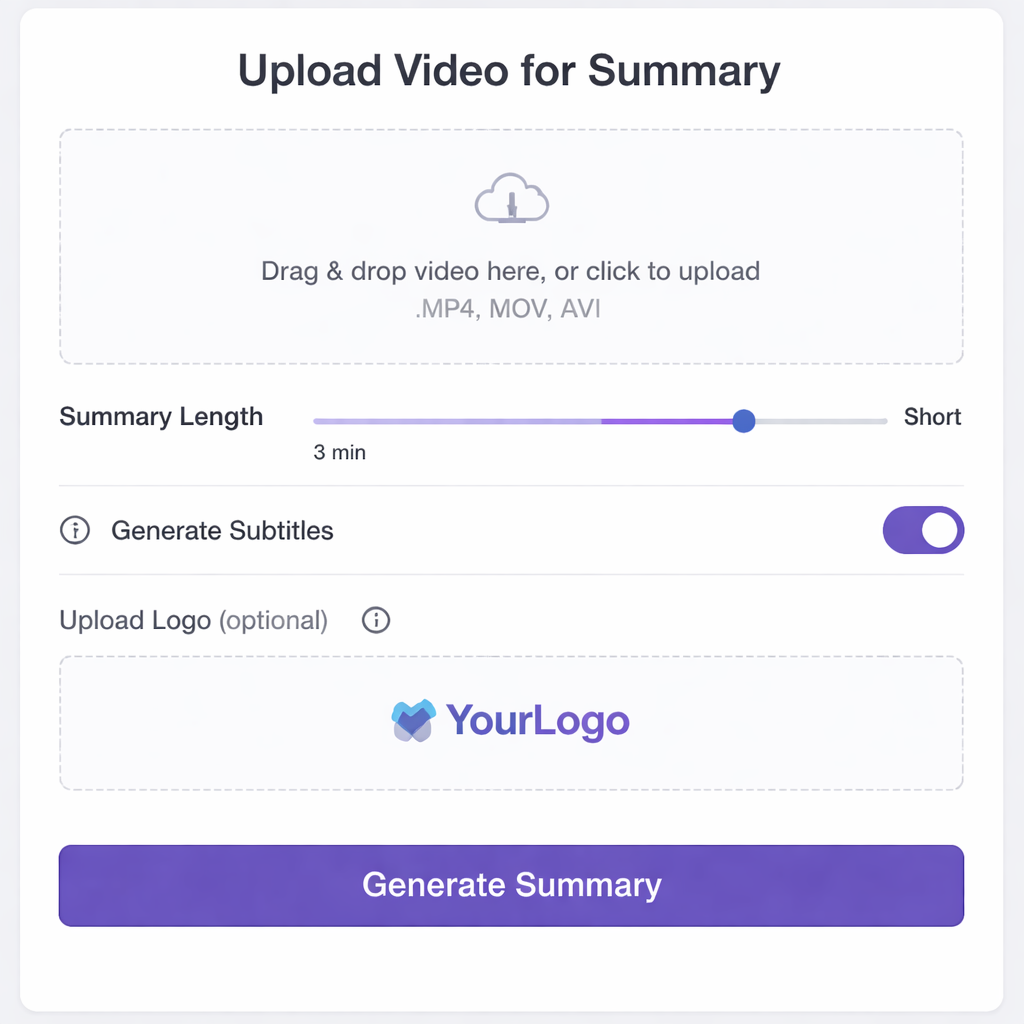
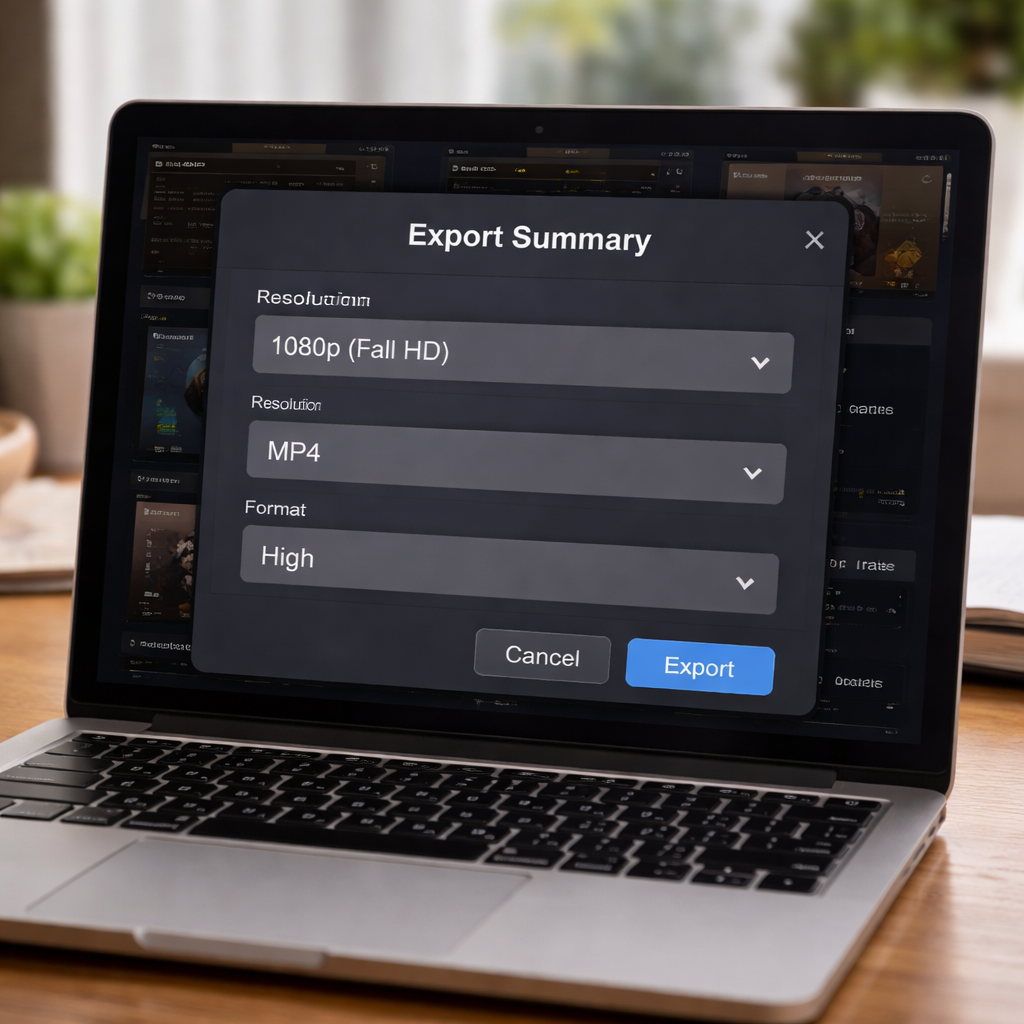
Finally, hit Generate. The tool will render a preview in a few seconds. Watch the cut, check the captions, and adjust the length slider if anything feels rushed. When you’re happy, click Export and choose 1080p for the best quality on TikTok, Instagram Reels, or YouTube Shorts.
Step 3: Generate and Review the Summary
The moment you hit Generate, the AI video summary tool spits out a preview you can instantly judge. No waiting, no guesswork. You see the cut, the captions, the branding—all in one frame.
First thing? Play the short straight through. Does the story flow? Do the captions line up with the speech?
Next, run a quick visual check. Is the logo clear? Is the colour balance right? Does the aspect ratio stay tight on a phone screen?
Now tweak the timing if needed.
After you’re happy with the edit, hit Export and pick 1080p.
Step 4: Compare Output Options and Export Formats
Now that your clip looks good, you have to decide how you’ll save and share it.
What to watch for
- Resolution: 1080p (best), 720p (smaller size)
- Format: MP4 (recommended)
- Bitrate: 8–10 Mbps for 1080p
- Aspect ratio: 9:16 (short-form)
Quick comparison
1080p MP4
Best for: TikTok, Reels, Shorts
Notes: High quality, works on all devices720p MP4
Best for: Email newsletters or low-bandwidth uploads
Notes: Smaller size, still clear on phones1:1 MP4
Best for: LinkedIn, Facebook
Notes: Keeps visuals centered
Conclusion
You've seen how an AI video summary tool can turn a long clip into a quick, share-ready short.
The key steps are simple: know what you need, upload, set the length, check the cut, then export in the right format.
Tools like Clipper Next put the whole workflow in one place, so you don't have to juggle separate apps.
Start with one short today and let the results speak for themselves.
FAQ
What is an AI video summary tool and how does it work?
An AI video summary tool looks at the full clip, finds key moments, and turns them into a short using speech and timing signals.
Can I use it with any video source?
Yes — YouTube links, MP4, MOV, and most formats work as long as audio is present.
How accurate are captions?
Accurate for clear audio, but may need quick edits if there’s noise.
What video length works best?
- 15–30s → Reels
- 30–60s → Shorts
Do I need editing skills?
No — AI handles most of the work.
Is it safe?
Most tools process securely. Always check privacy policies.